Adobe Creative Cloud’s dominance in design has guided many individuals to find alternatives that can better meet their requirements, spending plans or personal choices. Many graphic designers, photographers, illustrators, marketers, UI/UX designers, video editors and content creators can use these affordable tools because they have rich features without needing a subscription payment.
These top 10 alternatives to Adobe Creative Cloud are well-known in graphic design, photo editing, video production, UI/UX design and digital painting. For the software to be listed, it should have hard-hitting features, either come with a low price tag or be available for free, have usable versions for different types of users, come from communities who regularly update them and be easy to use.
Effective alternatives are on hand for freelancers, creative studios and indie filmmakers, allowing them flexible access to quality services. Considering these different options allows professionals to match their tools with their goals, skills and budget and still create results that match the industry.
Read More: Best AI Tools For Graphic Design
Criteria to Select the Best Adobe Creative Cloud Alternatives
Following are the most important factors that help choose the top alternatives to Adobe Creative Cloud.
- Professional-grade features: For Creative Cloud apps to replace Adobe Photoshop or Illustrator, they should provide similar levels of strength, accuracy and creativity (e.g., layers, various vector tools, raw file editing, video compositing).
- Cost-effectiveness: When possible, go for software you pay for just once, open-source software that’s free or cheap subscriptions that don’t reduce quality.
- User interface and usability: An interface that is simple and supports swift work is very important, particularly for professionals who used Adobe tools before.
- Platform compatibility: Being able to use Windows, macOS or Linux, plus web-based options, allows more people to use the service.
- Community and ecosystem: Continuous improvements, updated resources and lively user groups help support you in using a programming language for a long time.
- Integration and file format support: It should work easily with commonly used files (for example, PSD, SVG, RAW, MP4) and fit well into the current workflow.
- Specialized tool strength: A good tool is one that dominates in its own specific area, whether it is photo editing, vector design, layout, UI/UX, video production and so on.
List of Top 10 Adobe Creative Cloud Alternatives
1. Affinity Suite (Photo, Designer, Publisher)
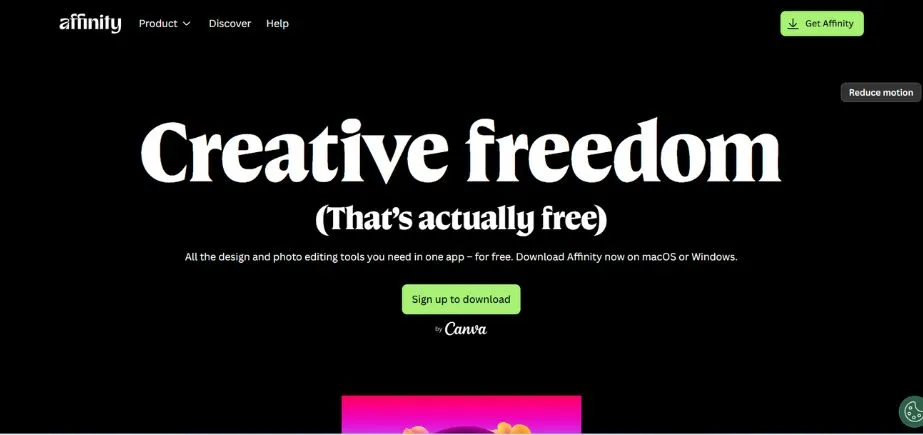
Serif developed Affinity Photo, Designer and Publisher which together form the Affinity Suite, a professional collection of creative apps. These tools offer the same features as Adobe Photoshop, Illustrator and InDesign each offers. Because of their speed, accuracy and ease of use, the suite offers users advanced features, for example, non-destructive editing, creating vectors and making layouts.
Unlike Adobe’s subscriptions, Affinity can be purchased just once which appeals to people working alone or in small businesses. You can run it on your Mac, PC or iPad because it’s made for Apple Silicon. A common sentiment is that the suite is strong, simple to work with and committed to helping affiliate marketers succeed.
Key Features:
- One-time purchase, no subscription
- PSD, AI, and PDF file support
- High-resolution photo editing
- Vector graphic design
- Professional publishing tools
Pros:
- Affordable, no recurring fees
- Seamless cross-app compatibility
Cons:
- No cloud storage or AI tools
- Limited collaboration features
Pricing:
One-time purchase ₹5,599.00
Who Should Use It?
Design professionals, freelancers, and studios wanting Adobe-quality tools without ongoing costs.
2. Canva Pro
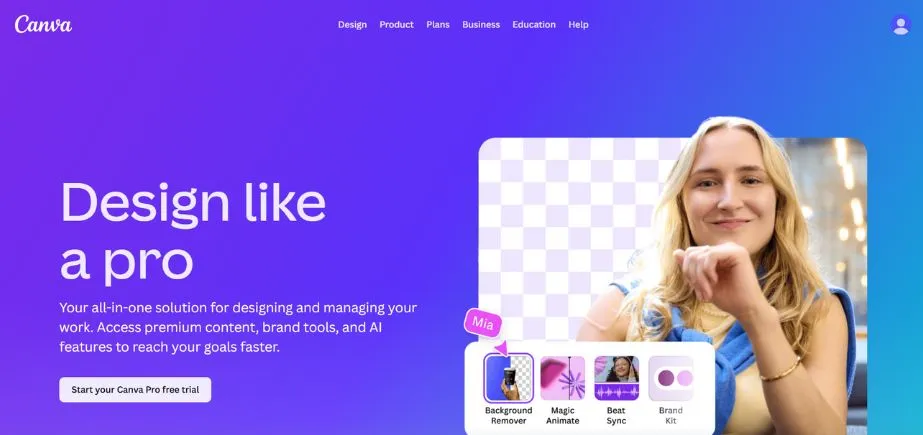
With Canva Pro, there is a graphic design tool in the cloud that helps marketers, entrepreneurs and non-designers produce nice visuals quickly. You can use its huge range of templates, stock images, fonts and other features to develop social media posts, presentations and marketing materials.
Canva Pro uses drag-and-drop tools and lets users collaborate live which simplifies the design process for those working individually or in groups. Brand kits, background remover and magic resize allow Canva Pro to stand out from the regular (free) version. Because it is easy to use and open to all, it helps people create lots of content without having to know design.
Key Features:
- Drag-and-drop interface
- Templates for social media, presentations, etc.
- Brand Kit & team collaboration
- Magic Resize & AI tools
- Stock photo/video integration
Pros:
- Beginner-friendly
- Fast content creation with templates
Cons:
- Limited advanced editing
- Not ideal for high-res print work
Pricing:
$12.99/month per user
Who Should Use It?
Marketers, small businesses, and content creators needing quick, polished visuals.
Also Read: Best AI Tools for Website Designers
3. CorelDRAW Graphics Suite
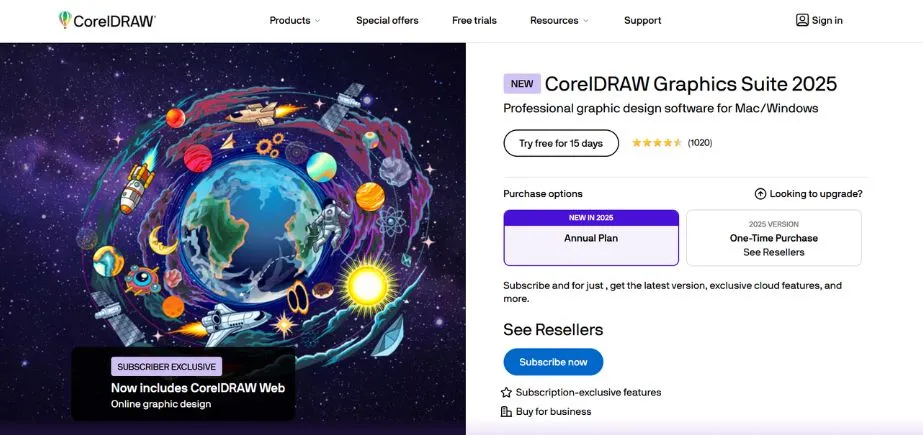
CorelDRAW Graphics Suite provides everything a professional graphic designer needs for creating vector illustrations, arranging pages, editing photos and setting typography. CorelDRAW and PHOTO-PAINT are two applications it includes for making detailed and high-resolution designs with standard file types.
A great choice for print professionals, illustrators and sign makers is the suite because of its accurate tools for dealing with color. You can download it on Windows and macOS and it lets you choose between a subscription plan or buying it in one go. Because it is easy to customize and features valuable AI-driven tools and variable fonts, CorelDRAW is a great alternative to Adobe Creative Cloud for those who use design software every day.
Key Features:
- Vector illustration and layout
- AI-powered image tracing
- Photo editing with Corel PHOTO-PAINT
- Font and typography tools
- Windows, Mac & web support
Pros:
- Extensive toolset for graphic professionals
- One-time and subscription options
Cons:
- Steep learning curve
- Slower updates than Adobe
Pricing:
Plan starts at ₹332.83/month
Who Should Use It?
Graphic designers and illustrators needing comprehensive tools with flexible pricing.
4. DaVinci Resolve
With some of the most advanced color grading, special effects and audio post-production options, DaVinci Resolve from Blackmagic Design is a popular video editing software among professionals. Blending editing, adjusting color, adding motion graphics and handling sound all in one program, it is very popular in film and television production.
With node-based Fusion, it is possible to use the program to create complicated visual effects like in Adobe After Effects. Basic DaVinci Resolve has all the necessary features and DaVinci Resolve Studio adds extra options including noise reduction and HDR grading. Because it is valued by professional videographers, it is ideal for big production jobs and goes toe-to-toe with Adobe Premiere Pro.
Key Features:
- Professional-grade video editing
- Advanced color grading tools
- Fusion visual effects and motion graphics
- Fairlight audio editing
- Multi-user collaboration
Pros:
- Free version is feature-rich
- Best-in-class color grading
Cons:
- Requires powerful hardware
- Learning curve for new users
Pricing:
Free version; Studio version at $295 (one-time)
Who Should Use It?
Filmmakers, video editors, and YouTubers seeking a powerful all-in-one tool.
5. GIMP (GNU Image Manipulation Program)
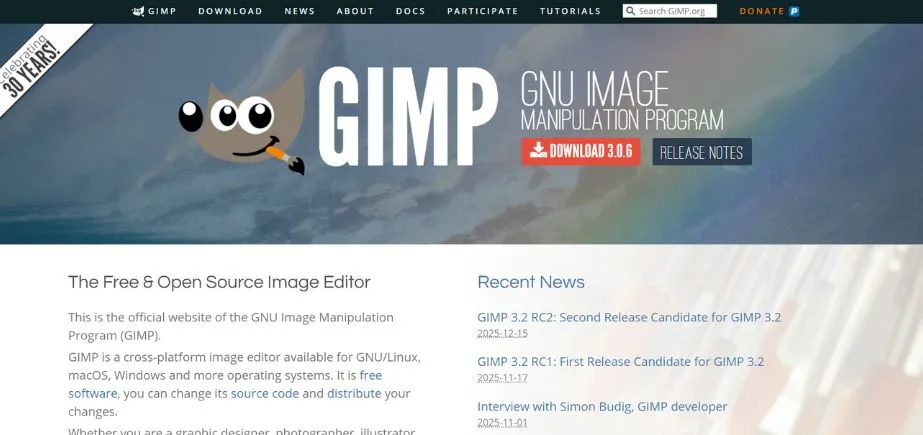
GIMP is an open-source image editor and a free replacement for Adobe Photoshop. GIMP is well suited for editing photos, creating images and doing designs and it includes layers, masks, filters and plug-ins. Because Vim can be adjusted to any style and runs across all kinds of systems, many hobbyists, students and professionals choose it as their main text editor.
Even though it cannot match Photoshop’s most advanced functions, GIMP supporters are keeping it up-to-date and feature-rich. Because GIMP offers scripting and supports many types of files, it can be used for all sorts of image editing with no cost involved.
Key Features:
- Layer and mask support
- Advanced photo retouching
- Customizable UI
- Plug-in support
- Open-source and free
Pros:
- Completely free
- Extensible via plug-ins
Cons:
- Less intuitive than Photoshop
- Slower development pace
Pricing:
Free (open-source)
Who Should Use It?
Photographers, hobbyists, and students who need a cost-free Photoshop alternative.
6. Inkscape

The free and open-source Inkscape is made to be an effective alternative to Adobe Illustrator. It uses SVG by default and enables drawing, shaping, working with text and handling nodes. Being accurate is easy with Inkscape since it is well-suited to illustrators, designers and web developers. There are layers, many path operations and full coverage of file formats included in it.
Even though its executive functions might seem less professional than other products, Inkscape can be modified and extended easily with available plug-ins. You can get Inkscape on Windows, macOS and Linux and many people value it for being highly accessible and great at producing vector images.
Key Features:
- SVG file format support
- Bezier and spiro curves
- Boolean operations
- Node editing tools
- Extensive extension support
Pros:
- Free and open-source
- Cross-platform support
Cons:
- Interface feels dated
- Performance can lag on large files
Pricing:
Free
Who Should Use It?
Designers and students seeking a zero-cost vector design tool.
7. Figma
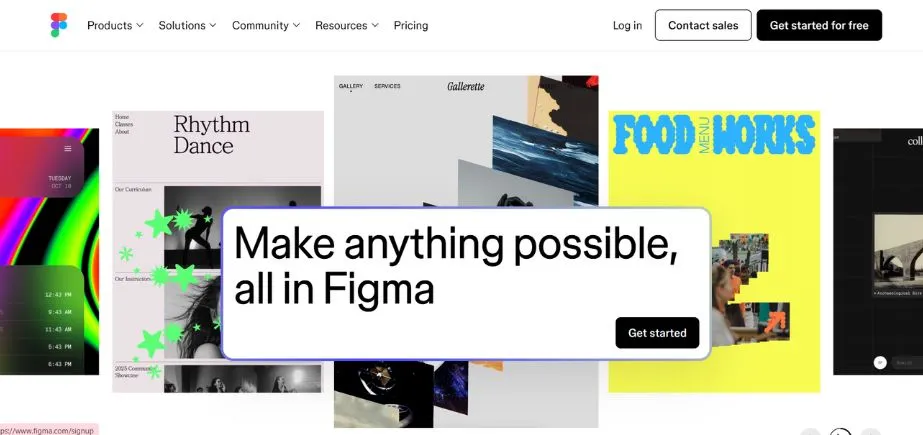
Figma is designed for the web, specializing in making it easy for groups of designers to work together on UI/UX. Because several users can work on the same project at once, it caters well to remote working teams. Product designers can work more smoothly with Figma because it supports vector editing, interactive prototyping and design systems. It can be accessed in your browser without worrying about the system you have and a desktop app option is also provided.
Functions such as auto layout, saved versions and team libraries help teams to get more done and remain consistent across several projects. Figma is well known in modern design teams and among professional product designers since it’s often used instead of Adobe XD and Sketch.
Key Features:
- Cloud-based collaboration
- Component-based design system
- Prototyping and animation
- Design version history
- Plugin and community resources
Pros:
- Real-time collaboration
- Free plan for individuals
Cons:
- Internet connection required
- Limited offline capabilities
Pricing:
Free; Pro starts at $16/month per editor
Who Should Use It?
UI/UX designers, product teams, and agencies focused on digital design.
8. Krita
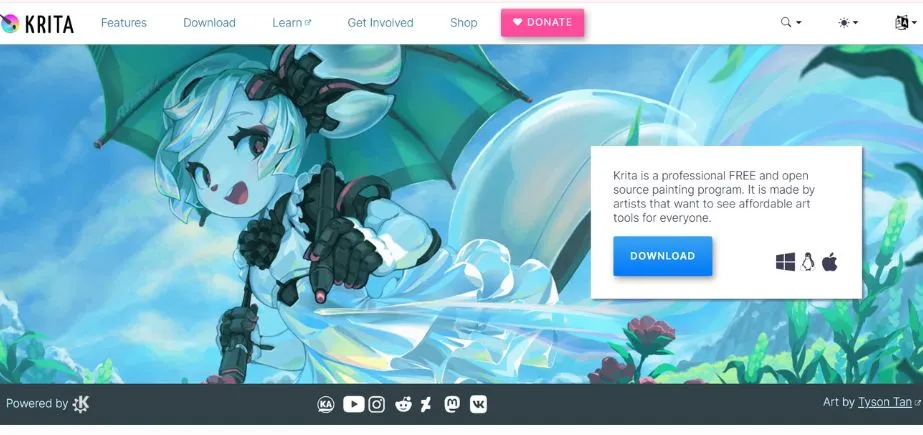
Krita is open-source and free for anyone who wants to use it, mainly for digital painting by illustrators, concept artists and comic creators. It allows you to change the toolbar and brush engines which are similar to real art supplies. Krita has layer management, HDR painting, tools for animation and the ability to import and export PSD files.
Because of its performance and richness, Krita is a good tool for professionals in the fields of character design and concept illustration. It can be run on Windows, macOS and Linux. Although Krita is open-source, it is still regarded as higher than similar paid software, so many artists choose it because it is robust and costs little to nothing.
Key Features:
- Brush stabilizers and engines
- Layer management
- Animation support
- PSD file compatibility
- Resource manager for brushes
Pros:
- Tailored for digital painting
- Free and regularly updated
Cons:
- Not ideal for photo editing
- Fewer vector tools
Pricing:
Free (donation-supported)
Who Should Use It?
Digital painters, illustrators, and animators seeking a Photoshop alternative for art.
9. HitFilm Express
HitFilm Express is software offered without charge that is suitable for YouTubers, indie filmmakers and content creators. The program gives users an easy-to-use interface with the ability to edit in any order, select composite shots and use a range of VFX presets. HitFilm includes 2D and 3D compositing, the use of the green screen, motion tracking and many transitions. Even though the basic version contains many features, advanced add-ons are available for purchase. Anyone who wants to make good quality videos on a budget can find it for Windows and macOS. It stands out because it merges editing and effects differently.
Key Features:
- Non-linear video editing
- 400+ visual effects
- 2D/3D compositing
- Green screen support
- Free tutorials and templates
Pros:
- Powerful for a free tool
- VFX features included
Cons:
- Resource intensive
- Some features behind paywall
Pricing:
Free; Add-ons and Pro version available starting at $12/month
Who Should Use It?
Content creators, students, and hobbyist filmmakers on a budget.
10. Capture One
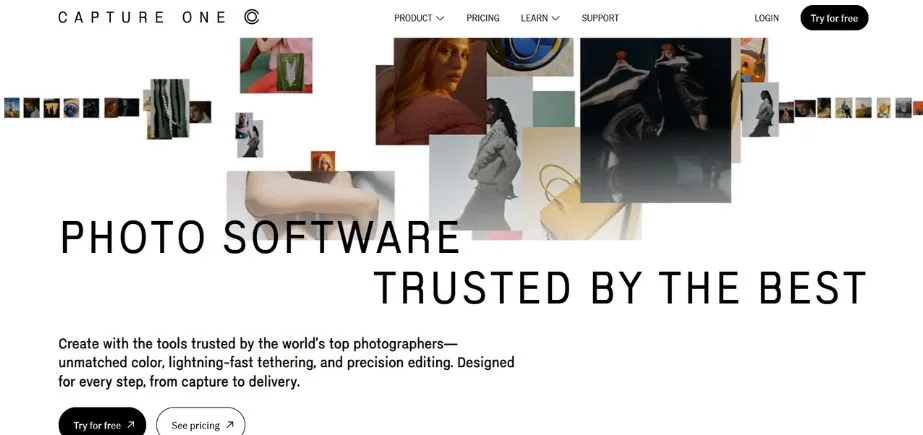
Capture One helps skilled photographers get flawless raw image processing and accurate color correcting. Phase One developed this and included tethered shooting, advanced masking, layers for editing and high-resolution color depth. Photographers use it in studios and for commercial projects because it offers a customizable work area and can process batches together. Handling many images in Capture One is fast and it is flexible in supporting a wide choice of cameras and raw formats. The price is higher, but it gives you the best image quality and control, making it a good alternative to Adobe Lightroom for professional photographers.
Key Features:
- Advanced raw image editing
- Precision color grading
- Tethered shooting support
- Customizable workspace
- Layers and masking
Pros:
- Superior color control
- Ideal for studio photography
Cons:
- Expensive
- Learning curve for new users
Pricing:
Starts from ₹806.42 /month
Who Should Use It?
Professional photographers and studios needing high-end editing and tethering capabilities.
Comparison Table Between Adobe Creative Cloud alternatives
| Tool | Key Features | Pricing Model | Primary Use Cases | Website |
| Affinity Suite (Photo, Designer, Publisher) | Photo editing, vector design, publishing tools, CMYK support, non-destructive editing | One-time purchase ₹5,599.00 | Graphic design, illustration, desktop publishing | https://affinity.serif.com |
| Canva Pro | Drag-and-drop design, templates, brand kits, collaboration, content planner | Subscription of ₹4000 per year per person | Social media design, presentations, marketing materials | https://www.canva.com |
| CorelDRAW Graphics Suite | Vector illustration, layout design, photo editing, typography, color tools | Plan starts at ₹332.83/month | Print design, branding, technical illustration | https://www.coreldraw.com |
| DaVinci Resolve | Professional video editing, color grading, VFX, audio post-production | Free + Studio version ($295 one-time) | Video editing, color correction, post-production | https://www.blackmagicdesign.com/products/davinciresolve |
| GIMP | Layered editing, retouching, open-source plug-ins, PSD support | Free (open-source) | Photo editing, basic graphic design | https://www.gimp.org |
| Inkscape | SVG support, vector illustration tools, path operations, open-source | Free (open-source) | Vector design, technical drawing | https://inkscape.org |
| Figma | Collaborative design, prototyping, auto layout, browser-based | Free + Pro plans (from $16/full seat/month) | UI/UX design, web & mobile app design | https://www.figma.com |
| Krita | Advanced brushes, layer support, animation tools, PSD compatible | Free (open-source) | Digital painting, illustration, concept art | https://krita.org |
| HitFilm Express | Non-linear editing, VFX, green screen, motion tracking | Free + Add-ons available | Indie filmmaking, content creation | https://fxhome.com/hitfilm |
| Capture One | RAW image editing, tethered capture, layer-based adjustments, color grading | Starts from ₹806.42 / month | Professional photography, studio shoots | https://www.captureone.com |
Conclusion
There are various powerful and economical alternatives to Adobe Creative Cloud for use by a wide range of creative personnel. Those who need all design tools and don’t want a subscription to find Affinity Suite is a good solution with all features included at once. Designers in UI/UX will appreciate Figma for its handy features for teamwork and making prototype interfaces. Capture One is recommended for photographers who want advanced raw editing and for filmmakers, DaVinci Resolve is the dominant option for video editing and color grading at no cost.
If you are a digital artist, Krita lets you do advanced painting and GIMP is a good, free option compared to Photoshop. When marketers and social media experts need a fast way to create great visuals but lack design experience, Canva Pro is their best choice. Vector illustration and print work can be done easily with Inkscape and CorelDRAW. Freelancers, studios and creators can use these tools to produce top-quality results and rely less on Adobe’s subscription plans.
FAQs
1. Does Adobe Creative Cloud have as strong alternatives as its tools?
Yes, several other kinds of software can provide professional-grade features like GIMP. Adobe is accepted by many industries, yet Affinity, DaVinci Resolve and Figma attract professionals because they are powerful, affordable and allow for specialized tasks.
2. Can I use program alternatives to open Adobe file formats?
Some designs use Adobe file types (for example, PSD, AI or INDD), but they tend to work better in some programs than others. As an illustration, Inkscape supports SVG and certain AI files and Affinity Photo can deal with PSD files. But it is possible that complex files do not turn out exactly as you expect.
3. Is there any way to get similar tools that don’t charge a monthly fee?
Yes. To use GIMP, Inkscape, Krita and HitFilm Express, you don’t need to pay, since they are both free and open source and include many of the main Adobe tools.
4. Do these solutions run on both systems- Windows and Mac?
Most listed alternatives like Affinity, DaVinci Resolve and Figma are able to be used on both Windows and macOS. A number of these applications are also compatible with Linux (e.g., GIMP, Inkscape, Krita).
5. Which alternative should beginners use?
Because of their simple designs and tutorials, both Canva Pro and GIMP are ideal for those new to graphic design. Non-designers should prefer Canva, although GIMP gives people with more experience more variety and learning opportunities for traditional editors.
Continue Exploring: Best AI Tools For Logo Design